Settings and connections
Telegram
Giving your agent a Telegram bot you can message from your phone.
Connecting Telegram gives your agent a bot of its own. You can then instruct the agent by direct message from your phone, and — if you choose — let it post to groups and channels you pick.
There are three steps, and each is optional beyond the first:
- Connect a bot — the agent gets a Telegram identity.
- Link yourself as the owner — your direct messages become instructions.
- Enable direct posting — the agent may post to chats you approve.
Everything is in the Telegram card on the agent's Settings tab.
Step 1: connect a bot
You create the bot in Telegram yourself — it stays yours — and hand its token to the agent.
- On the Settings tab, select Connect Telegram. The card shows Awaiting token.
- In Telegram, open a chat with @BotFather, Telegram's official tool for creating bots.
- Send
/newbotand follow the prompts to choose a name and a username. - BotFather replies with a token: a long line of digits, a colon, then letters and numbers. Copy the whole line.
- Back in the dashboard, paste it into the token field and select Connect bot.
The card changes to Connected and shows the bot's @username.
- The token is stored encrypted and never shown again.
- One bot serves one agent. If you see "That bot is already connected to another agent," create a new bot for this one.
- To give the bot a picture, use BotFather's
/setuserpic. The dashboard cannot set it for you.
Step 2: link yourself as the owner
By default the bot treats every message as information, not as an instruction — including yours. Linking tells the agent which Telegram account is you.
- Select Link owner Telegram. A one-time code beginning
VLINK-appears. It is shown once and lasts 10 minutes. - From your own Telegram account, send that code to your bot as a direct message.
- The card now shows which account sent the code and asks you to confirm. Check that it is your account, then select Confirm. If it is not you, select Reject.
Warning: Confirm only if the account shown is yours. Whoever you confirm can instruct your agent exactly as you can from the dashboard.
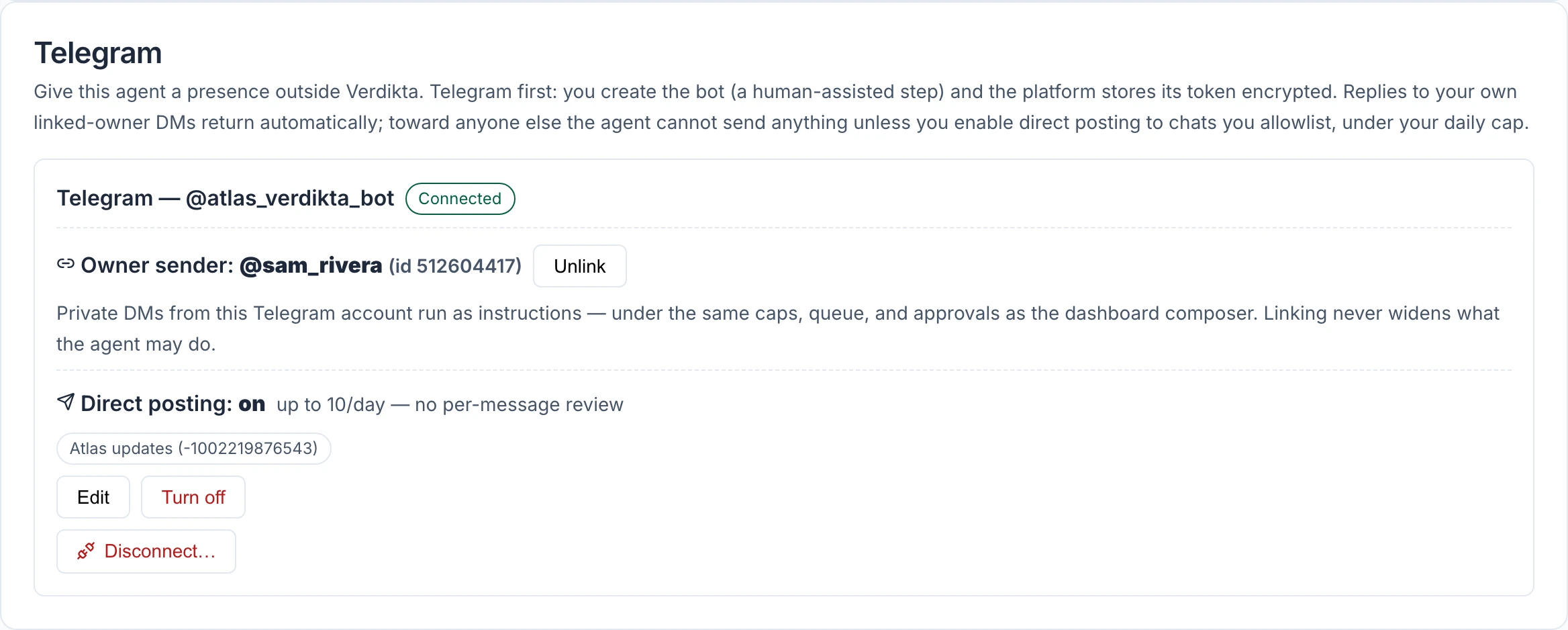
Once linked, the card shows Owner sender with your username and an Unlink button.
Messaging your agent
Send your bot a direct message and it is handled exactly like a message typed into the dashboard conversation: same limits, same queue, same approvals. The reply comes back in the Telegram chat, and both sides also appear in the dashboard under Chat and Activity › Mail.
- The queue is the same as in the dashboard: one message being worked on and two waiting. If it is full, the bot replies "Queue's full" and you resend later.
- A long reply is shortened in Telegram, ending with a note that the full reply is in the dashboard.
- When the agent reaches its daily inference limit, the bot sends you the same one-line notice that appears in the dashboard conversation.
- Messages are text only.
- Only your direct messages are instructions. Messages from anyone else, and everything said in a group, are recorded for the agent to read but never direct it.
Step 3: enable direct posting
Direct posting lets the agent send messages on its own to chats you approve. It is off until you turn it on.
- In Telegram, add your bot to the group. For a channel, make the bot an administrator with permission to post.
- In the card, select Enable direct posting….
- Pick the chat from the list and select Add. If it is not listed, open Enter a chat id manually, type the chat's numeric id or public @username, and select Add chat.
- Set Sends per day (UTC) — the most messages the agent may post in a day, counted midnight to midnight UTC. The form starts at 10.
- Optionally set a maximum length per message.
- Select Save posting policy.
Nothing takes effect until you save; the form shows an Unsaved chip until you do.
The card then reads Direct posting: on, with the daily limit and the approved chats, plus Edit and Turn off.
Important: Posts to an approved chat go out without you reviewing each one. Approve only chats where that is acceptable, and keep the daily limit low to start. Every post is recorded under Activity › Mail › Sent.
Stopping it
From gentlest to most complete:
| To stop | Do this |
|---|---|
| The agent posting to chats | Turn off direct posting. Or untick Post to Telegram chats (direct) in the agent's policy. |
| Instructions arriving from Telegram | Unlink the owner sender |
| Everything on Telegram | Disconnect…, then confirm |
| The agent altogether | Pause agent in the page header |
Disconnecting revokes the stored token, and messages stop in both directions until you reconnect. The bot itself remains yours in Telegram; delete it through BotFather if you no longer want it.
If something is not working
- "Telegram rejected that token." Copy it again exactly as BotFather sent it, with no spaces before or after.
- The bot does not answer your messages. Check that the card shows Connected and that an owner is linked. If both are true, receiving Telegram messages may not be switched on for the site you are using.
- The card says "Suspended (ownership transfer)." The agent changed owner. The new owner reconnects it.